
How to Edit Top Navigation Menu Font Size, Padding, Color, and Background
The Top Navigation Menu or simply called Top Menu is a secondary menu which is usually used to show page links to common blog pages like “Home“, “About“, “Contact” and Amazon store among others.

Accessing Top Menu Settings
To access the editing control for the top navigation menu, login to your WordPress dashboard then navigate to Appearance => Customize => Theme Settings => Navigation Settings then look for the “Top Navigation Menu” heading.
Edit Top Menu Font Size
To edit top navigation font size, look for the label “Top Navigation Menu” and under it you’ll see a range slider labeled “Top Menu Font Size“.
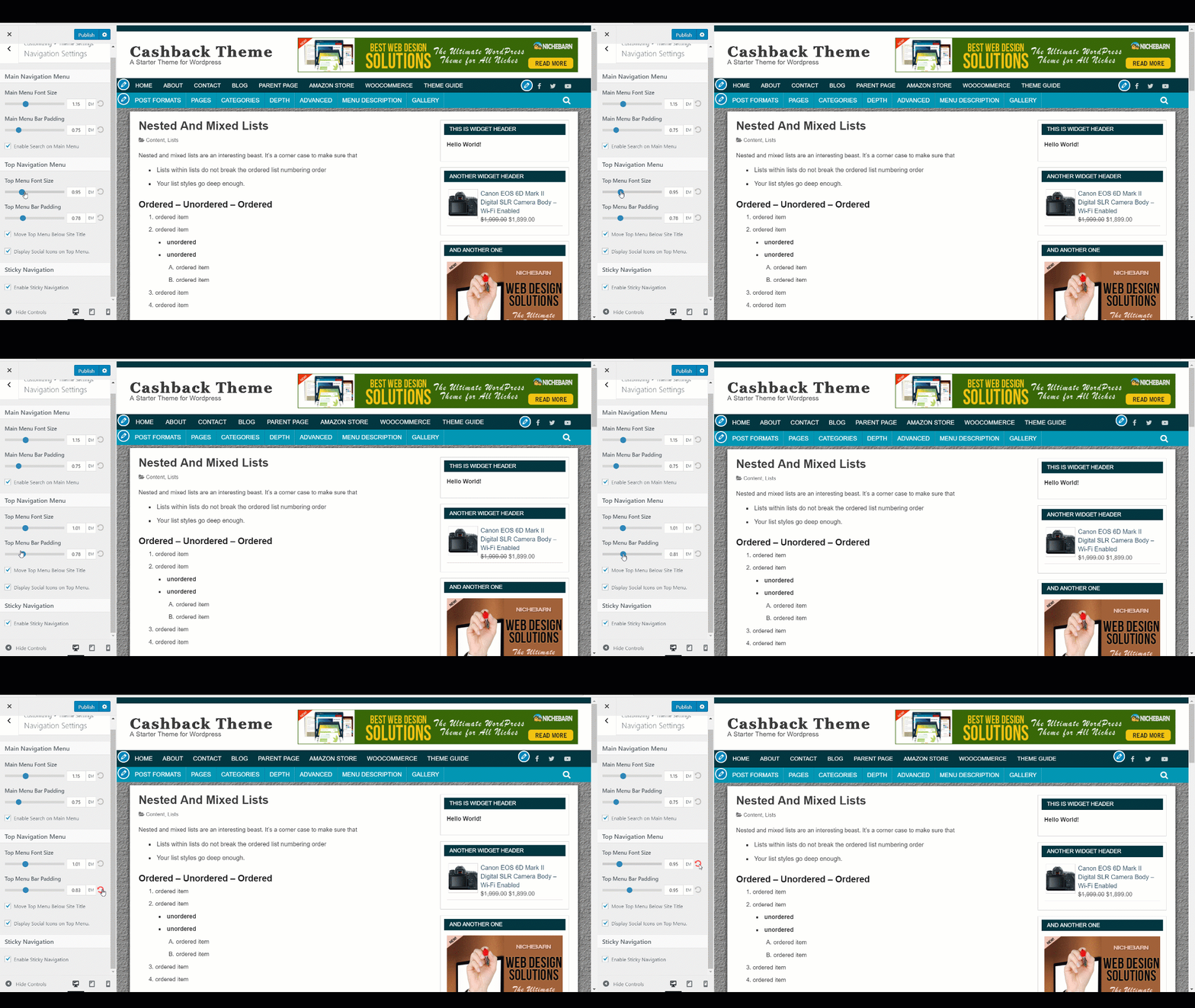
Feel free to “play” with the range slider until you obtain the size that looks good for you. Make sure the top menu is visible on your preview window before playing with the range slider.
Edit Top Menu Padding
You can set the menu items distance from each other by increasing/decreasing the range slider for “Top Menu Bar Padding“
Edit Top Menu Font Style
If you want to change the pre-set font style, go to Appearance => Customize => Fonts then look for the label “Navigation Font“.
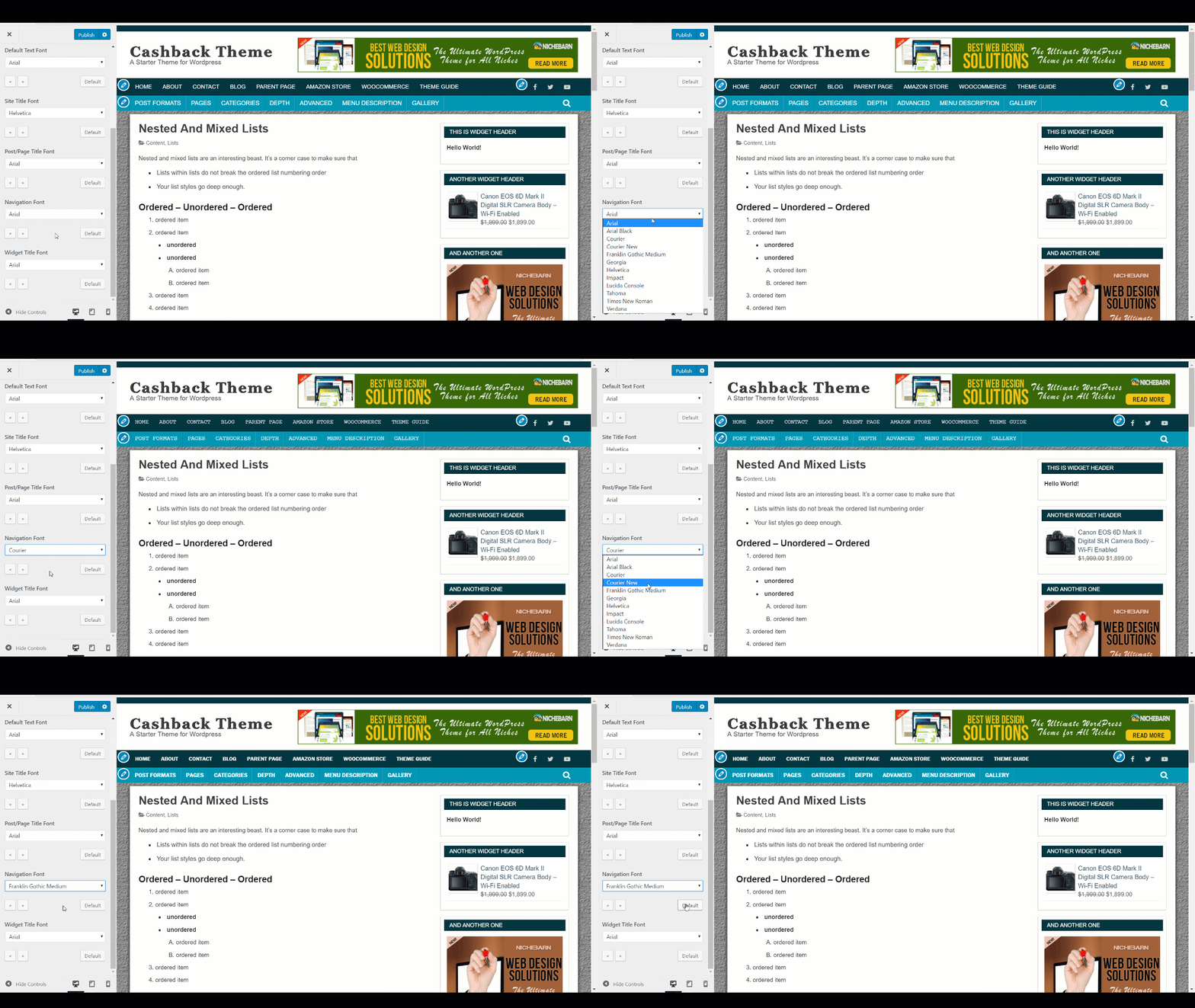
Edit Top Menu Font Color
To edit top menu font color, go to Appearance => Customize => Colors => Top Menu Colors.

Edit Top Menu Background Color
To edit top menu background color, go to Appearance => Customize => Colors => Top Menu Colors.