
Blog Installation Using the All-in-One WP Migration Plugin
Using All-in-One WP Migration Plugin is the easier and quicker way of installing your ready-made blogs without having to upload the backup files to your server/webhost. This method requires a pre-installed WordPress (WP) site. You can install a fresh WP site using Softaculous.
Before anything else, please check the allowed “Maximum upload file size” of your WordPress Install. If it allows at least 64MB then you’re good to go. You can go ahead with the installation.
On the other hand, if the upload limit is less than 64MB you can quickly increase it by following this guide: Increase your maximum upload size via cPanel.
Now, if you’re sure that your WordPress install could accommodate the upload limit, then go ahead with the installation instruction below.
Here’s a quick video:
Here’s a step-by-step and fully illustrated guide on how to install your blog using the All in One WP Migration plugin:
- First, unzip the blog file on your laptop/computer.
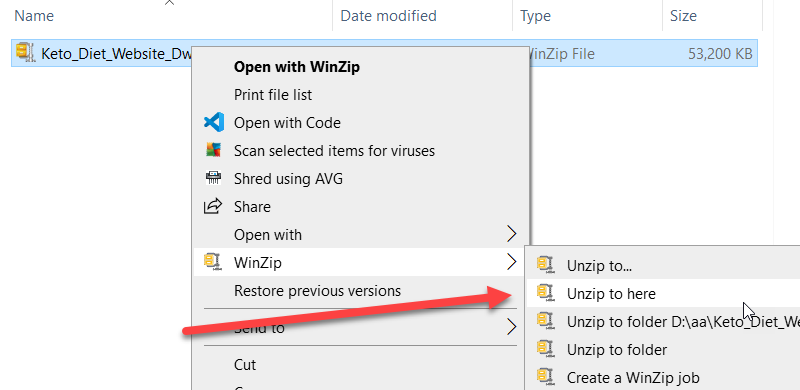
I always include this step on any blog installation tutorial because many folks assume that they’ll just upload the whole thing without unzipping it first. - Log in to your WP Dashboard. New to WordPress?
- Hover your mouse over the “Plugins” menu then click the “Add New” link.
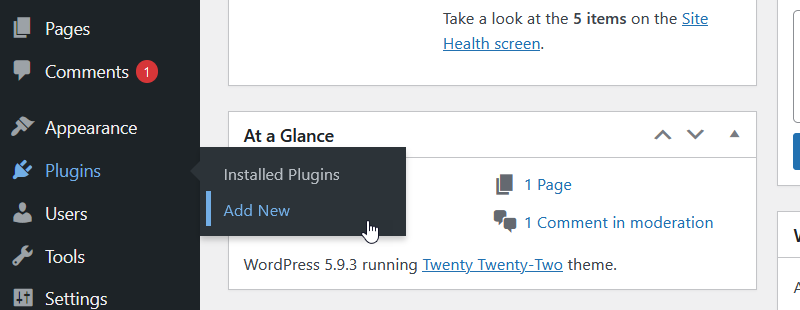
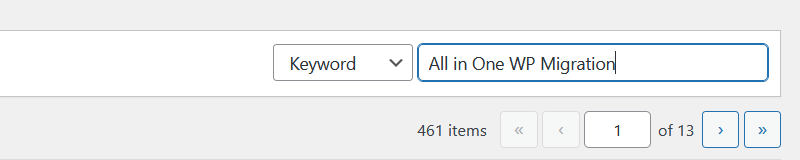
- On the “Add Plugins” page, type “All in One WP Migration” on the Search plugins field. You should be able to see the plugin name in the search results.
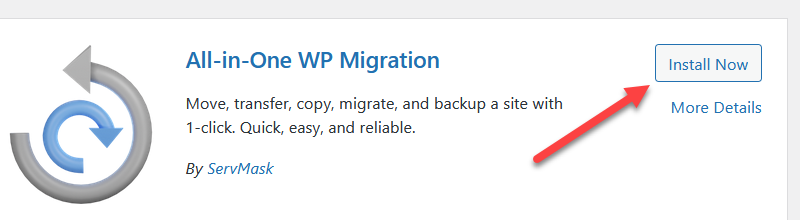
- Be sure that the plugin author is by ServMask.
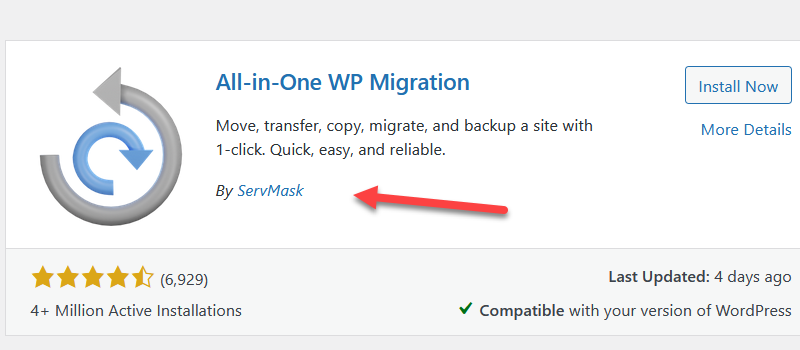
- Now, click the “Install Now” button.
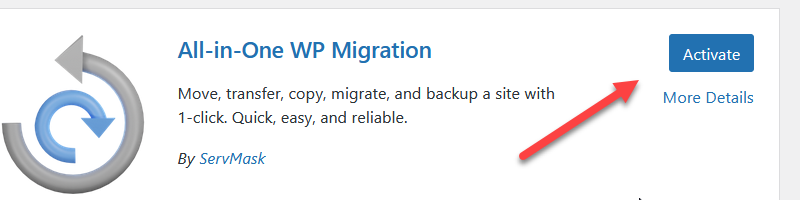
- Click “Activate.”
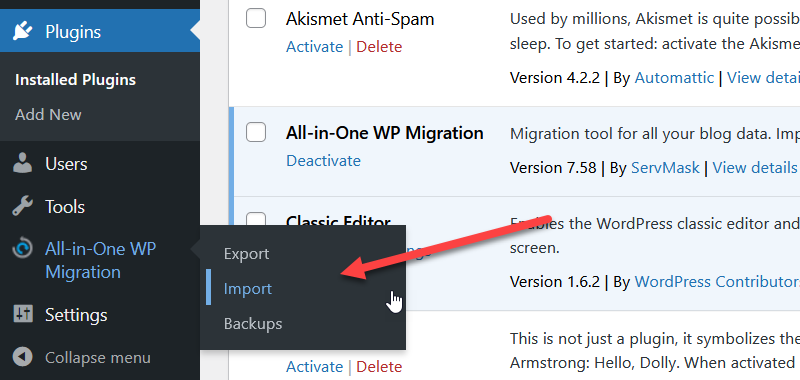
- Hover your mouse over the new “All-in-One WP Migration” menu then click on “Import“.
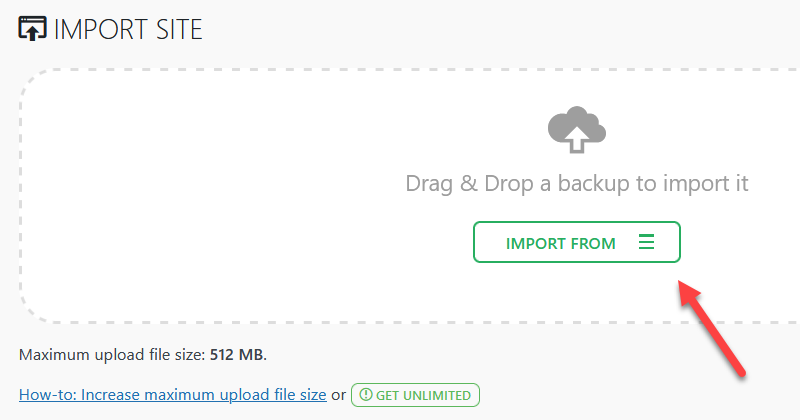
- On the import site page, click the “Import From” menu.
- Click on “FILE” from the dropdown menu.

- A “File Upload” window will pop up.
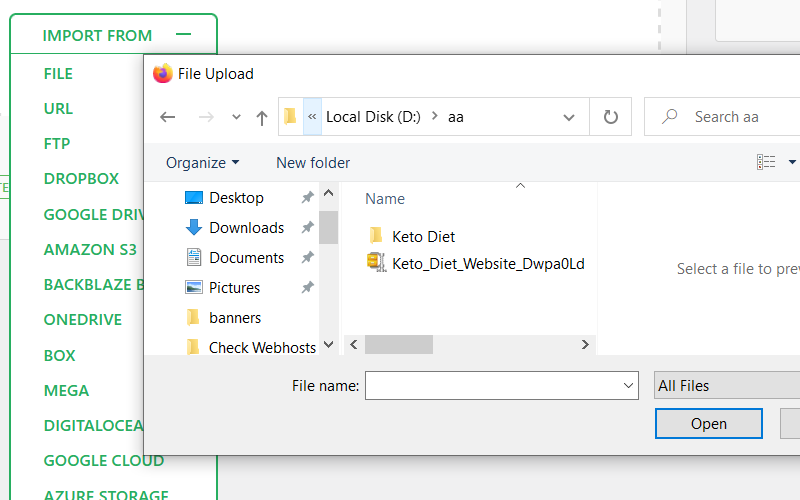
You should be able to locate that file you’ve downloaded from the PLR blog site.
Note: I made the pop-up window smaller to fit this tutorial page. - Find the sub-folder called “All-in-One WP Migration File“. Open that folder.
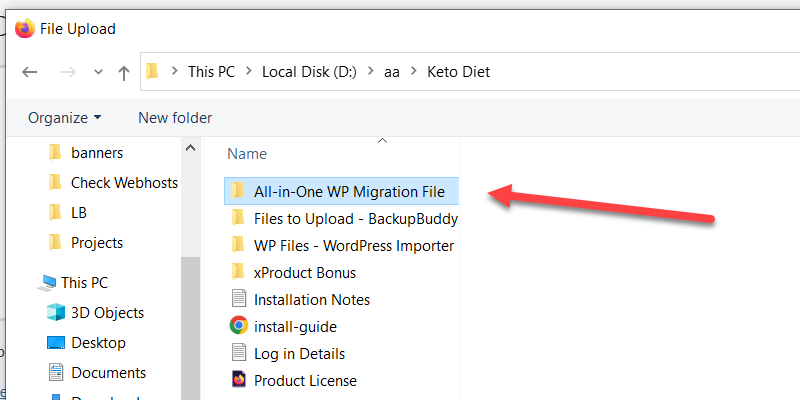
- Select the .wpress file then click the “Open” button.
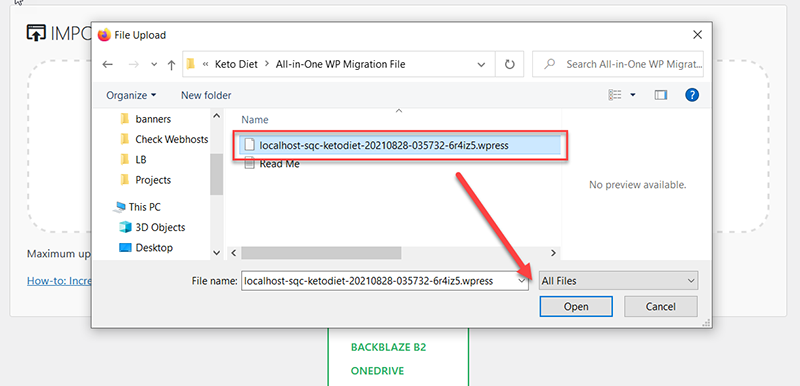
I deliberately resize the window to fit this tut page. - The script should start the importing process.
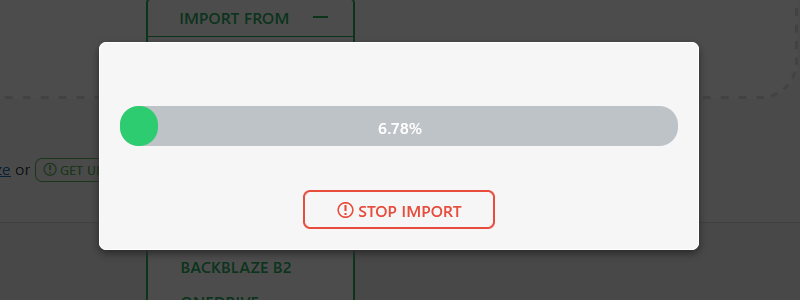
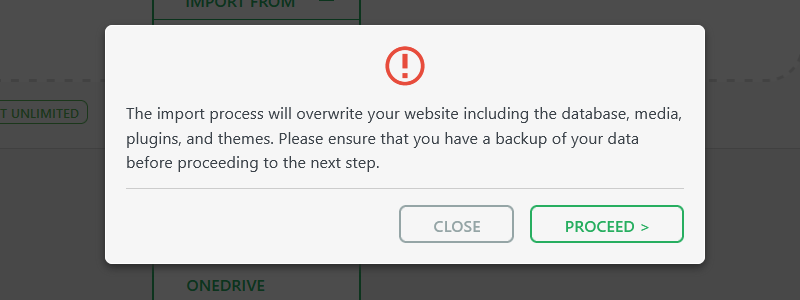
- Just click the “Proceed” button.
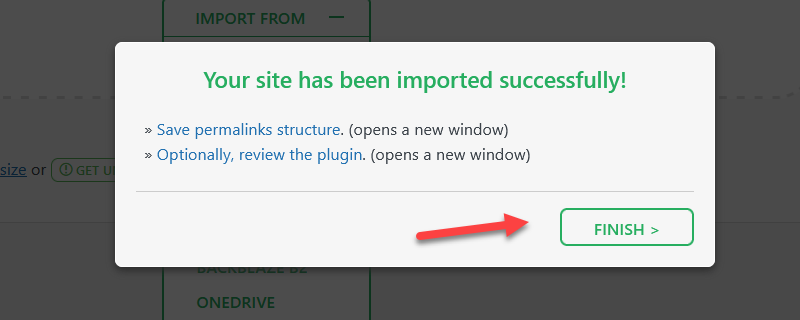
- Click “Finish” and you’re done.
That’s it.
Check your new site. You need to relog into your newly installed site. Use the login info included with your download file.